VS Code
The ALCops VS Code extension is the recommended way to use ALCops during development. It automatically downloads and manages the analyzer DLLs for you.
Install the VS Code Extension
Install the extension from the marketplace or use the command line identifier for automated setups.
Marketplace
Install ALCopsCommand line
code --install-extension Arthurvdv.alcopsSelecting Code Cops
The ALCops status bar item at the bottom of VS Code lets you quickly enable or disable individual analyzers. Click on ALCops in the status bar to open the selection menu, then toggle the cops you want active for your project.
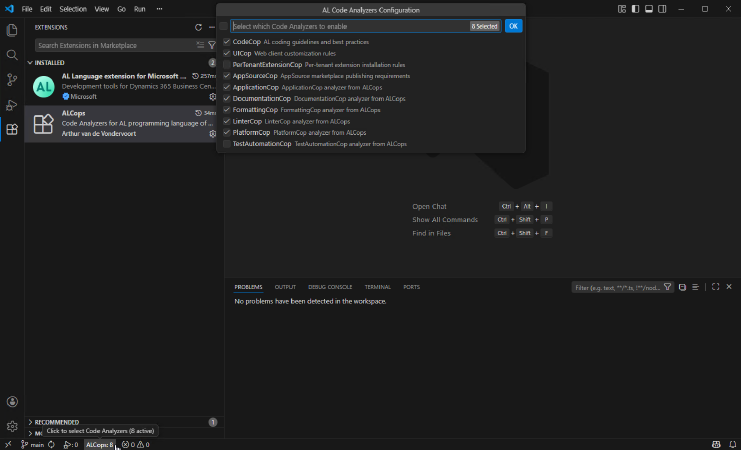
Click the ALCops status bar item to enable or disable individual analyzers.
After changing your selection, reload the VS Code window (Ctrl+Shift+P → Developer: Reload Window) for the AL Language Server to pick up the updated analyzer configuration.
Extension Settings
| Setting | Default | Description |
|---|---|---|
alcops.automaticUpdates | true | Automatically check for analyzer updates. |
alcops.updateNotification | notify-only | How updates are handled: auto-install, notify-only, or manual. |
alcops.versionChannel | stable | Which release channel to track: stable, beta, or alpha. |
alcops.checkUpdateInterval | 24 | Hours between update checks (1-720). |
Manual Setup (without the extension)
If you prefer not to use the extension, you can manually configure the AL Language extension to load ALCops analyzers.
Add the analyzer DLL paths to the al.codeAnalyzers setting in your VS Code settings (settings.json):
"al.codeAnalyzers": [
    "${CodeCop}",
    "${UICop}",
    "${analyzerfolder}ALCops.ApplicationCop.dll",
    "${analyzerfolder}ALCops.DocumentationCop.dll",
    "${analyzerfolder}ALCops.FormattingCop.dll",
    "${analyzerfolder}ALCops.LinterCop.dll",
    "${analyzerfolder}ALCops.PlatformCop.dll",
    "${analyzerFolder}ALCops.Common.dll"
]
The ${analyzerfolder} token resolves to the bin/Analyzers folder inside the AL Language extension. Place the downloaded DLLs there.
VS Code settings have a precedence order: Folder settings override Workspace settings, which override User settings. If your analyzers are not loading, verify you are editing the correct settings level.
You can include only the analyzers you need. Each analyzer DLL is independent, but you must also include ALCops.Common.dll. This shared dependency is required by all ALCops analyzers.
If you are not loading any Microsoft code analyzers (CodeCop, UICop, etc.), you must also add Microsoft.Dynamics.Nav.Analyzers.Common.dll.